

Step-by-step
When attempting to run new software that is not already allowlisted, you will get a pop-up in the bottom left of monitor (similar to the picture below)

If you are in the process of installing an application and you recognise the program that is attempting to run, and you want to run it, click request access.
If you are not installing an application or update, and you get this pop up, please take a screenshot of the request and click cancel. Immediately send us a support ticket with the screenshot and tell us what you were doing when the request appeared.
After clicking Request Access, you will be prompted to submit a request form as below.
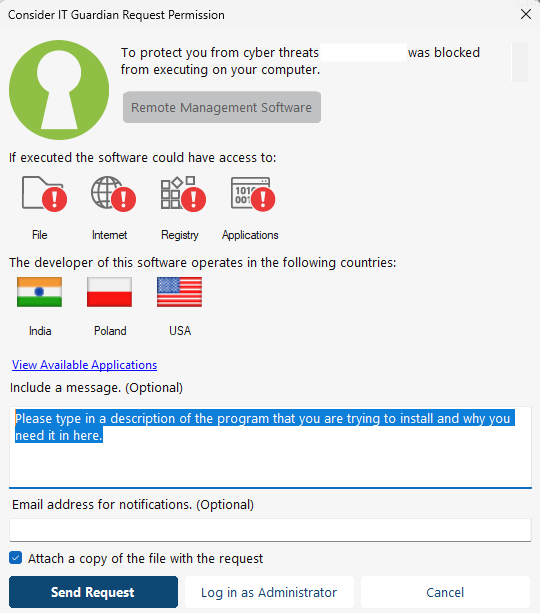
Write us a message detailing what the software does, and the reason you need it, in the 'Include a message' box.
Make sure the 'Attach a copy of the file with the request' box is ticked. This allows us to scan it for threats if necessary.
Then click Send Request.
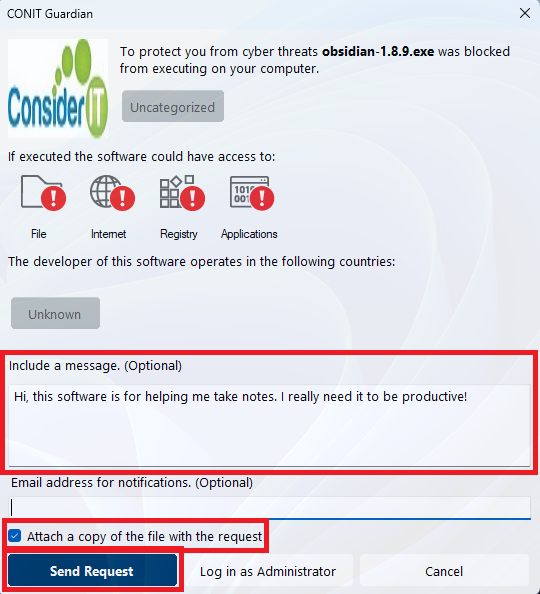
We will review the software and allow it to execute if there are no issues.
Once allowed, you will receive another pop-up

Click 'Run Now' to run your requested file
Once you see this notification, you will be able to run your program as an administrator, usually for a period of one hour.
Checking Blocked Items
If you would like to review the items that have been blocked on your machine, you can go to the system tray and right-click on this icon -

Right-clicking will bring up a menu -
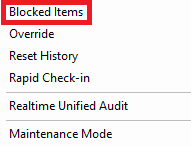
Click the Blocked Items options, there is no need to worry about the other options.
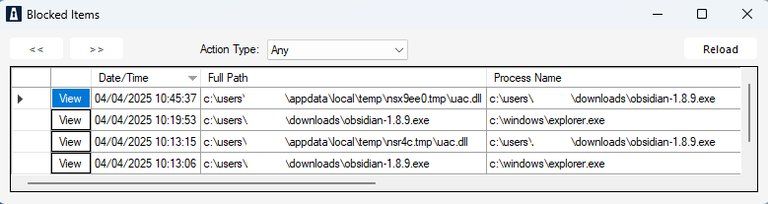
This will open a list of the items that have been blocked on your machine -
Was this helpful?
Related guides
- Microsoft 365 · Consider IT Email Protection
- Desktop · Consider IT Guardian Elevation Requests
- Microsoft Teams · How to Email Files in Microsoft Teams as Attachments, Using Microsoft Outlook
Still stuck? Open a support ticket →
Published 10 June 2026 · Last updated 17 June 2026