

Step-by-step
This set of instructions is for the New Outlook in Windows
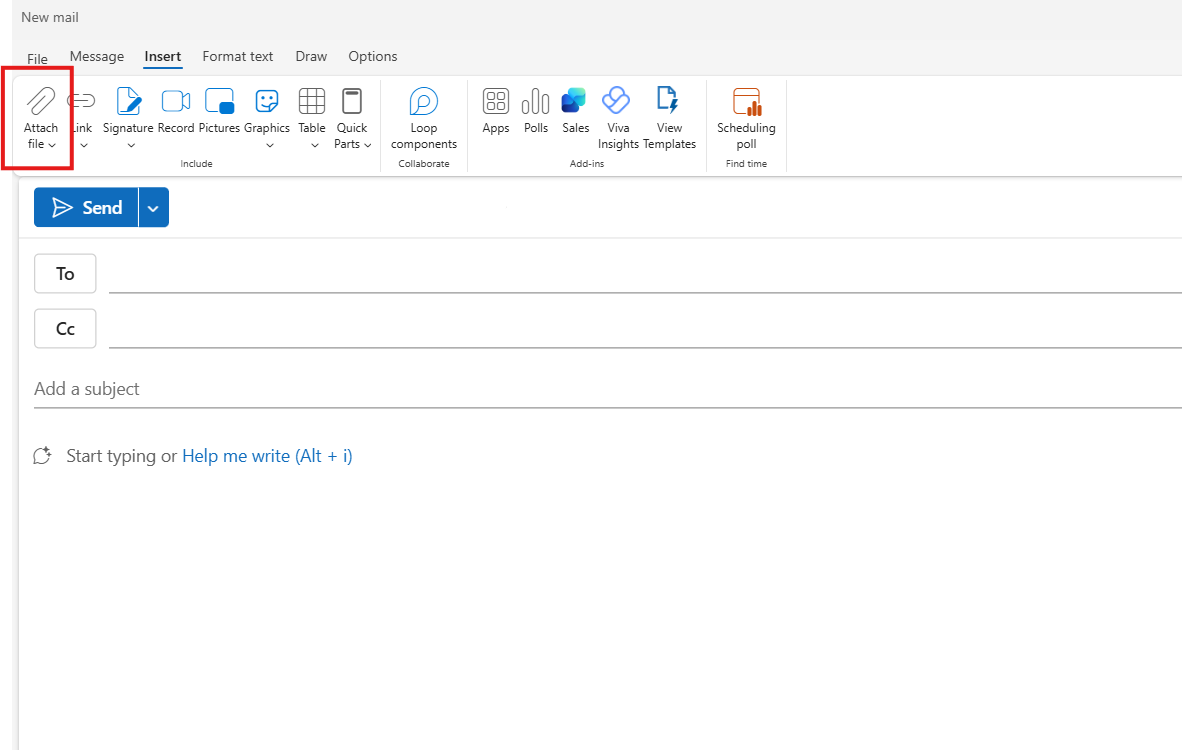
- Open up a new Email and go to the [Insert] Tab and click on the [Paperclip Icon]
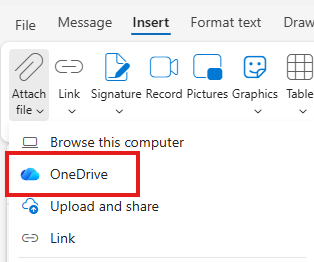
- From the dropdown options, click on [OneDrive]
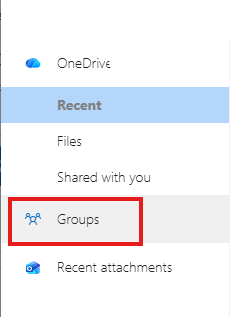
- Then select [Groups]
- You should see all of your Teams listed under All Groups
- Select The Team that contains the files that you are looking to attach
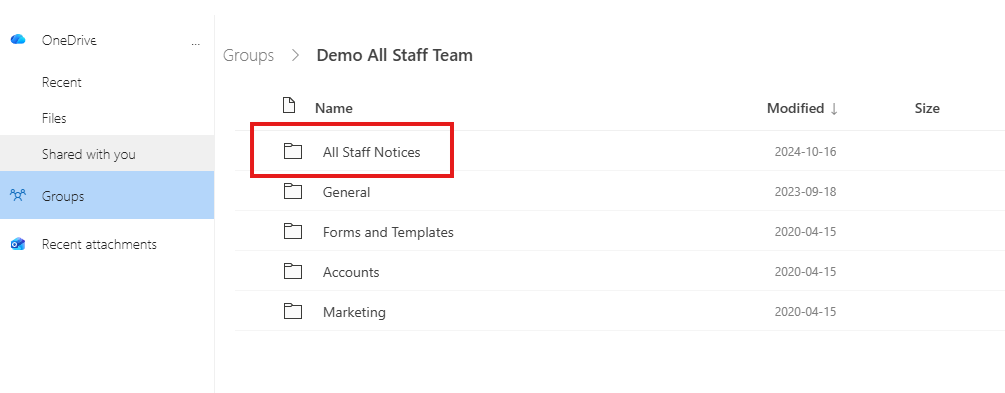
- Click on the Channel that contains the files that you want to attach (In this example – Demo All Staff Team
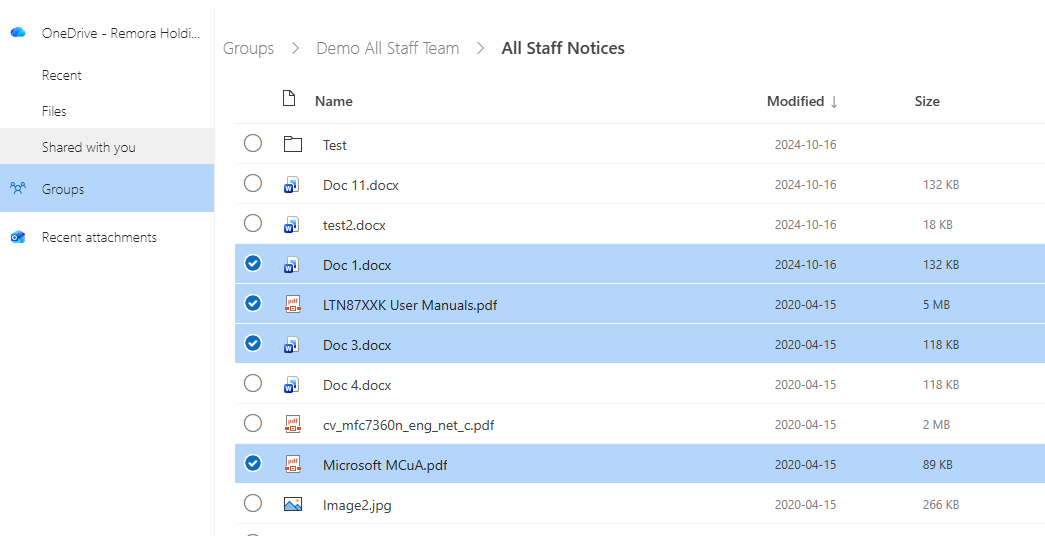
- You should now be able to see the files and folder inside that channel
- Open the folders that contain the files that you require
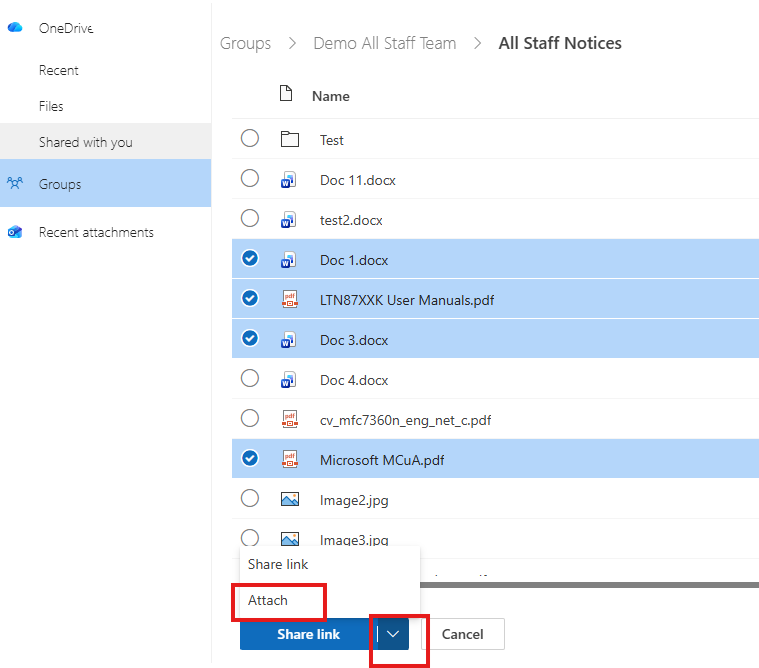
- To select the files that you want to attach, click on the round tick box to the left of each file (if you do not see the empty tick boxes, just hover your mouse over the area)
- At the bottom of the page click on the [down arrow] next to [Share Link] and select [Attach]
- This should upload the files into your email
- This should upload the files into your email
Was this helpful?
Related guides
- Microsoft 365 · Consider IT Email Protection
- Desktop · Consider IT Guardian Elevation Requests
- Microsoft 365 · How to clear the cache in the new Outlook app to fix sync issues
Still stuck? Open a support ticket →
Published 30 July 2026