
Step-by-step
Our email security service leverages advanced technology to keep your business safe. Utilising AI-driven protection, we analyse every incoming message for phishing attempts, spam, and other email-based threats, stopping attacks before they reach your inbox. This means stronger security, fewer risks, and peace of mind for your team.
You’ll notice banners appearing above your emails, this is how we communicate potential risk. These banners provide quick, easy-to-understand alerts about suspicious content, such as phishing attempts or unusual sender behaviour. They’re designed to help you make informed decisions before interacting with an email, adding an extra layer of protection without disrupting your workflow.
The colour of the banner will change depending on the threat detected. Continue to the next page to see what each colour means, and how to interact with them.
Banner Action Buttons

Every banner includes action buttons that let you quickly classify an email. Your selection helps protect you immediately and improves email security for everyone.
Safe
Click Safe when:
You trust the sender and were expecting the email, and
The message content makes sense, and
There are no suspicious links, attachments, or requests for sensitive information
Use Safe if an email was flagged incorrectly or looks normal and legitimate.
Spam
Click Spam when:
The email is unwanted, irrelevant, or unsolicited
It is promotional or bulk email you did not sign up for
It is not dangerous, but you don’t want to receive emails like this
Spam emails are annoying but not attempting to trick you or steal information.
Phish
Click Phish when:
The email tries to get you to log in, reset a password, or share sensitive information
It asks for money, gift cards, or changes to bank or payment details
It impersonates a trusted person, company, or internal staff member
The message feels urgent, threatening, or “off”
If you are unsure, it is safest to choose Phish.
More
Click More when:
You want to review full message details before deciding
You need help choosing the correct option
You want to add an optional comment or confirm whether you clicked a link or opened an attachment
The More button opens a detailed reporting page where you can:
See sender and message details
Choose Safe, Spam, or Phishing
Add comments (optional)
Indicate whether you clicked a link or opened an attachment
Use More if you want to double‑check before submitting your final choice, or tell us that you have interacted with a suspicious email.
Internal

What this means This email was sent from inside your organisation. The sender’s email address belongs to your company’s domain.
What you should do
If the email looks normal and expected, no action is needed.
Be cautious if the message is unusual (urgent requests, payment instructions, password resets, or unexpected attachments), as attackers can impersonate internal users.
Known External

What this means This email is from outside your organisation, but the sender is a recognised and trusted external contact (such as a vendor, partner, or customer you commonly communicate with).
What you should do
Review the message as you normally would, but remain cautious. Trusted accounts can still be compromised.
Pay extra attention to requests for payments, login actions, or changes to account details.
External

What this means This email was sent from outside your organisation, and INKY did not detect anything unusual.
What you should do
Confirm the sender is someone you expect to hear from.
Be careful with links or attachments in unexpected emails.
Caution: External

What this means This is an external email that contains unusual characteristics. It is not necessarily malicious, but it deserves closer inspection.
Examples include:
First‑time senders
Messages that appear spam‑like
Emails that contain unusual formatting or wording
What you should do
Double‑check the sender’s address.
Avoid clicking links or opening attachments unless you are confident the email is legitimate.
Danger: External

What this means This external email is likely dangerous. INKY detected strong indicators of phishing, impersonation, or other malicious behaviour.
What you should do
Do not click links or open attachments.
Do not reply to the sender.
In most cases, the safest action is to report it as phishing.
Caution: External (Account credentials detected)
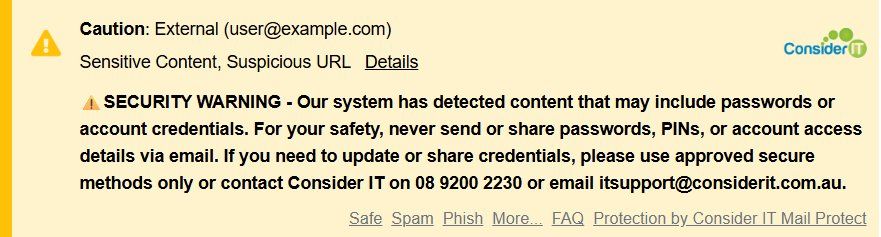
What this means This external email contains content related to passwords, login credentials, or account access. These types of messages are commonly used in phishing attacks.
What you should do
Be suspicious of login requests, password reset links, or urgent security warnings.
Never enter your password through an email link unless you independently verify the source.
Caution: External (Financial information detected)
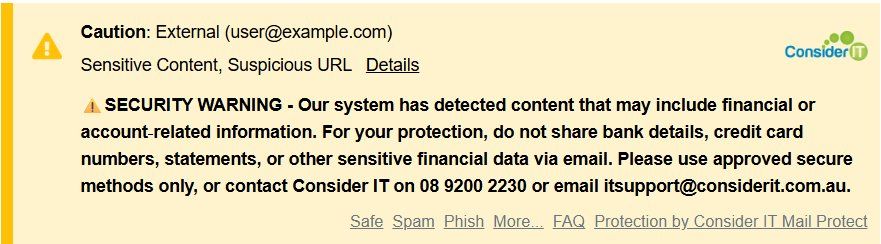
What this means This external email includes financial or account‑related content, such as invoices, payments, bank details, or account changes. These messages are frequently targeted by fraudsters.
What you should do
Carefully verify payment requests or changes to financial information.
Confirm unexpected invoices or account changes through a trusted, separate communication method.
Was this helpful?
Related guides
- Desktop · Consider IT Guardian Elevation Requests
- Microsoft Teams · How to Email Files in Microsoft Teams as Attachments, Using Microsoft Outlook
- Microsoft 365 · How to clear the cache in the new Outlook app to fix sync issues
Still stuck? Open a support ticket →
Published 10 June 2026 · Last updated 16 August 2026