

Step-by-step
Overview
The new Outlook keeps a local copy of your mailbox on your computer so it loads quickly. When that copy goes stale, Outlook starts showing you yesterday’s information: search results that are out of date, a banner that will not go away, the wrong profile photo, or add-ins that have stopped behaving.
Clearing the cache fixes most of that. It takes a couple of minutes and leaves your account set up, so you only need to sign in once at the end.
Your mail, calendar and contacts live in Microsoft’s cloud. Nothing in this guide touches them.
Before you start
Clearing the cache signs you out of Outlook, so you need to be able to sign back in. Have these ready.
- Your Microsoft 365 password.
- The phone you use to approve sign-ins, if your account uses multi-factor authentication (MFA).
- An empty Outbox. Send or delete anything sitting in it, and anything still open as an unsent draft.
Do not start this five minutes before a meeting or at the end of the day. If the sign-in does not go smoothly you will be without email until it is sorted, and that is a worse problem than the one you started with.
Steps
You will use a built-in Windows tool called DevTools (Developer Tools) to do this. It looks technical, but you only need two things from it and both are a right-click.
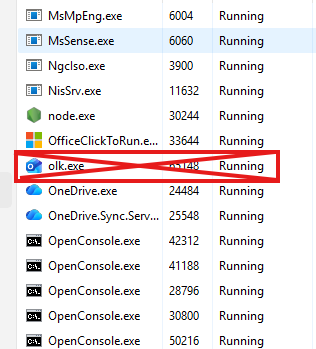
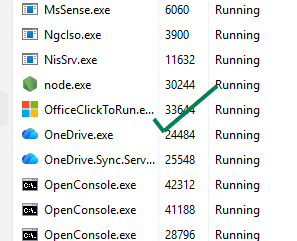
- Close the new Outlook completely. Minimising it is not enough. Right-click the taskbar, open Task Manager, and confirm there is no
olk.exestill running.
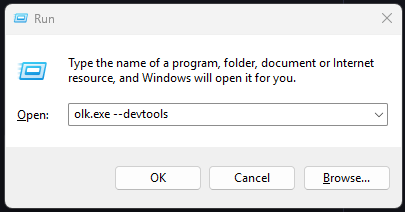
- Press the Windows key and R together. The Run box opens in the bottom left of your screen.
- Type `olk.exe --devtools` and click OK. That is two dashes before the word devtools, not one. The single-dash version no longer works and will show an error.
- Sign in if Outlook asks you to. Outlook opens, and a second window called DevTools opens next to it.
- In the DevTools window, click Application on the row of tabs across the top.
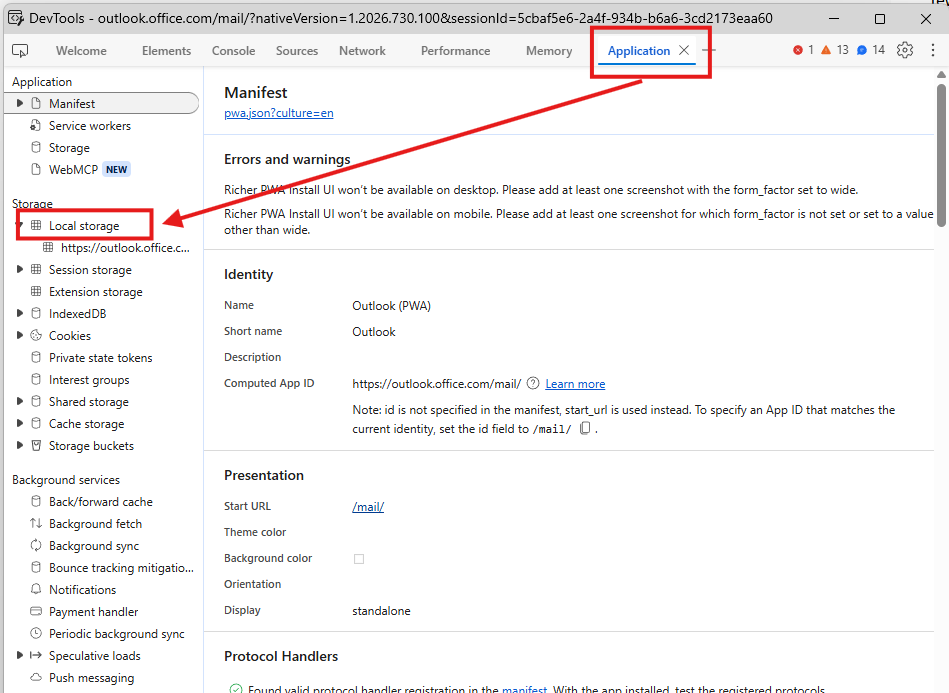
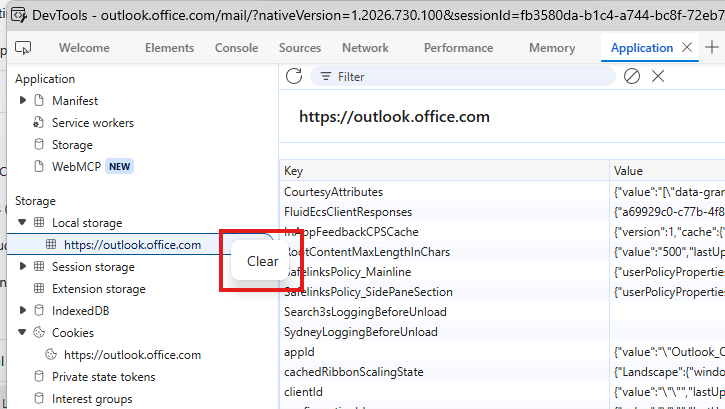
- Clear the stored data. In the left-hand panel, expand Storage, then Local Storage. Right-click
https://outlook.office.comand choose Clear.
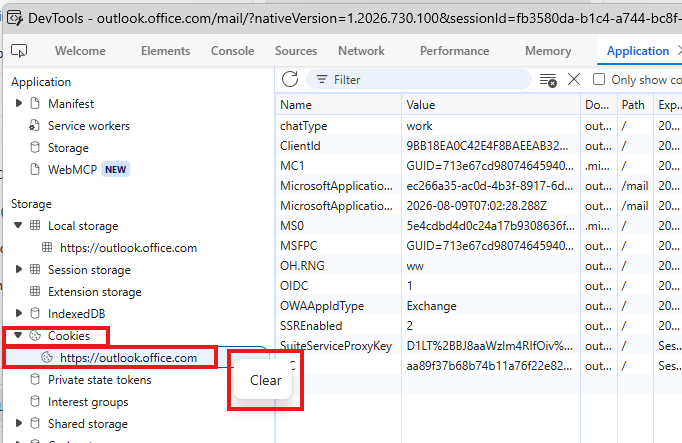
- Clear the cookies. Still in the left-hand panel, expand Cookies. Right-click
https://outlook.office.comand choose Clear.
- Close the DevTools window.
- Close Outlook, then open it again normally. Sign in when it asks you to.
- Check whether the original problem is gone. Do the exact thing that was not working before. Do not settle for Outlook opening without an error.
If the problem has gone, you are done. If it is still there, the cache was not the cause, and the next section tells you what that means.
Troubleshooting
If the problem is still there after clearing the cache, stop here. You have ruled out the most common cause, and the remaining possibilities need someone with access to your account settings. Get in touch with Consider IT and tell us you have already cleared the cache. That saves us asking you to do it again.
If `olk.exe --devtools` shows an error, do not try to fix the error. This is an undocumented Microsoft option and they change it without notice, so it is not the fault you are chasing. Get in touch with Consider IT instead.
If you find advice online telling you to run other `olk.exe` commands, please do not run them. Some of them are out of date and at least one can remove mail that is only stored on your computer. Send us the link and we will tell you whether it applies to your setup.
If you cannot sign back in, ring Consider IT on 08 92002230 rather than trying repeatedly. Too many failed attempts can lock the account, which turns a five minute job into a longer one.
Was this helpful?
Related guides
- Microsoft 365 · Consider IT Email Protection
- Desktop · Consider IT Guardian Elevation Requests
- Microsoft Teams · How to Email Files in Microsoft Teams as Attachments, Using Microsoft Outlook
Still stuck? Open a support ticket →
Published 13 August 2026 · Last updated 20 August 2026