
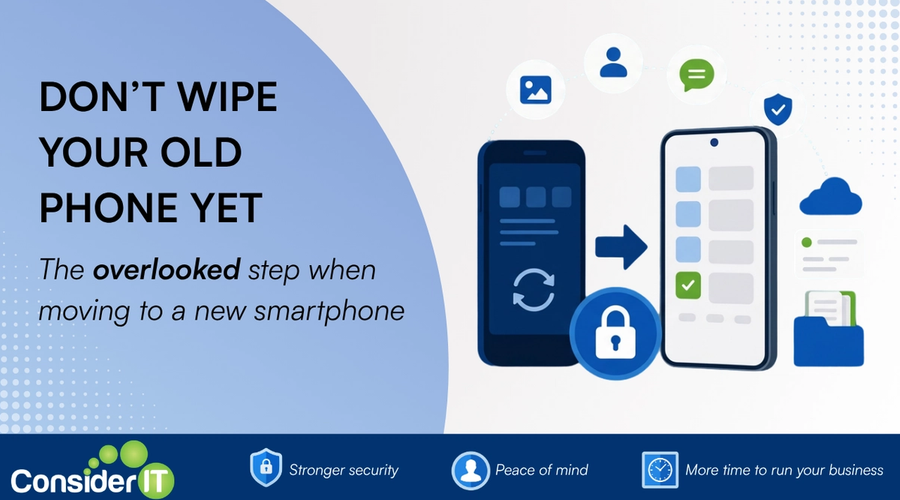
Getting a new phone is usually an exciting experience. Modern migrationMoving your data, email or systems from one place to another, such as from an old server to the cloud. tools from Apple and Android make the process remarkably simple. Photos, contacts, messages, apps, settings, and even home screen layouts can often be transferred automatically in a matter of hours.
Because the migration process has become so seamless, many people assume that everything has transferred successfully and immediately erase, sell, trade in, or dispose of their old phone.
Unfortunately, this is one of the most common mistakes we see.
While most data transfers correctly, authentication and security systems often require additional attention. Failing to verify these systems before wiping the old device can leave you locked out of important accounts, email, business applications, and cloud services. This risk is particularly common with Microsoft 365Microsoft's subscription bundle of email, Office apps and online storage used by many businesses., Google Workspace, banking applications, and other services that use multi-factor authenticationA second check on top of your password, such as a code on your phone, that stops most account break ins. (MFA).
The Hidden Problem: Authentication Doesn't Always Transfer
Most people focus on whether their photos, contacts, and apps have transferred successfully. What is often overlooked is that security systems may still be linked to the old device.
Authenticator applications such as Microsoft Authenticator may appear on the new phone after a migration, but certain authentication methods are tied to the specific device that was originally registered. In many cases, work and school accounts must be re-registered or verified before the new phone can fully replace the old one.
This becomes even more important as organisations increasingly adopt stronger security controls such as:
- Multi-factor authentication (MFA)
- Passwordless sign-in
- Number matching approvals
- Device registration
- Passkeys and FIDO2 authentication
- Conditional Access policies
Many of these security features are intentionally designed to trust a specific device. From a security perspective, this is a good thing. From a user perspective, it can create unexpected challenges when changing phones.
Why Passwordless Sign-In Is Different
With traditional MFA, you enter your password and then approve a promptThe instruction or question you give an AI tool to get the result you want. on your phone.
With passwordless sign-in, the phone itself becomes the trusted authentication device. This means the service may recognise the old phone as your approved sign-in method, not the new one.
Even if Microsoft Authenticator has been transferred to your new phone, passwordless sign-in often needs to be registered again before it will work. Microsoft's guidance notes that work and school accounts frequently require additional setup after being restored on a new device.
This is why you should never assume that seeing the Authenticator appA program that does a specific job, such as your email, accounting software or web browser. on your new phone means everything is fully configured.
When You Still Have Your Old Phone
The good news is that replacing a phone while you still have access to the old one is usually straightforward.
The old device can be used to:
- Approve sign-in requests.
- Verify your identity.
- Register Microsoft Authenticator on the new phone.
- Configure passwordless sign-in again.
- Remove the old phone registration once testing is complete.
Because the old phone can still perform security approvals, most users can complete the entire migration themselves without needing assistance from IT.
When the Old Phone Is Already Gone
Problems typically arise when the old device has already been:
- Factory reset
- Traded in
- Sold
- Lost
- Stolen
- Damaged beyond use
At this point, users may discover that they can no longer complete MFA prompts because the authentication requests are still being sent to the old device.
Depending on the security configuration, users may need an alternative authentication method such as:
- SMS verification
- Voice call verification
- Temporary Access Pass (TAP)
- Security key
- Another registered authentication method
If none of these options have been configured, assistance from your IT administrator or managed service providerAn IT company that looks after your technology for an ongoing monthly fee rather than charging only when something breaks. may be required before access can be restored.
For businesses, this often results in support requests that could have been avoided simply by keeping the old phone available for a little longer.
The Business Impact
For organisations using Microsoft 365, losing access to MFA can have significant consequences.
Users may be unable to access:
- Outlook email
- Microsoft Teams
- OneDrive
- SharePoint
- Line-of-business applications
- Client portals
- Banking and financial systems
What starts as a routine phone upgrade can quickly become a productivity issue if authentication has not been migrated correctly.
In some organisations, device registration and Conditional Access policies may also prevent access until the new device has been enrolled and verified.
Our Recommended Best Practice
Whenever you replace a smartphone, treat the migration as a two-stage process.
Stage 1: Transfer the Data
Move your:
- Contacts
- Photos
- Files
- Apps
- Messages
- Settings
Stage 2: Verify Authentication
Before wiping the old phone, confirm that:
- Email is working.
- Microsoft Authenticator is functioning correctly.
- MFA prompts arrive on the new phone.
- Passwordless sign-in has been reconfigured if required.
- Banking and critical business applications can be accessed.
- Any required Company Portal or device registration steps have been completed.
- The old device has been removed from your security information only after the new device is working correctly.
Only once these checks have been completed should the old phone be erased, returned, traded in, or disposed of.
Final Thoughts
Phone migrations have become incredibly easy, but authentication remains one area that still requires careful attention.
The old assumption that "everything transfers automatically" is no longer accurate when security platforms such as Microsoft 365, Google Workspace, passwordless authentication, and MFA are involved.
Keeping your old phone available for a few extra days can save a significant amount of frustration and downtime.
Before you wipe that old device, make sure your new phone can successfully receive MFA prompts, approve sign-ins, access email, and authenticate to all the services you rely on every day.
It is a small step that can prevent a major support issue later.
Want to learn more?
Microsoft provides detailed guidance on moving Microsoft Authenticator to a new device, including passwordless accounts and work or school accounts:
Transfer Microsoft Authenticator to a new phone | Microsoft Learn
Was this useful?
Enjoyed this article? Join our newsletter for more.
We respect your inbox. Unsubscribe anytime.